
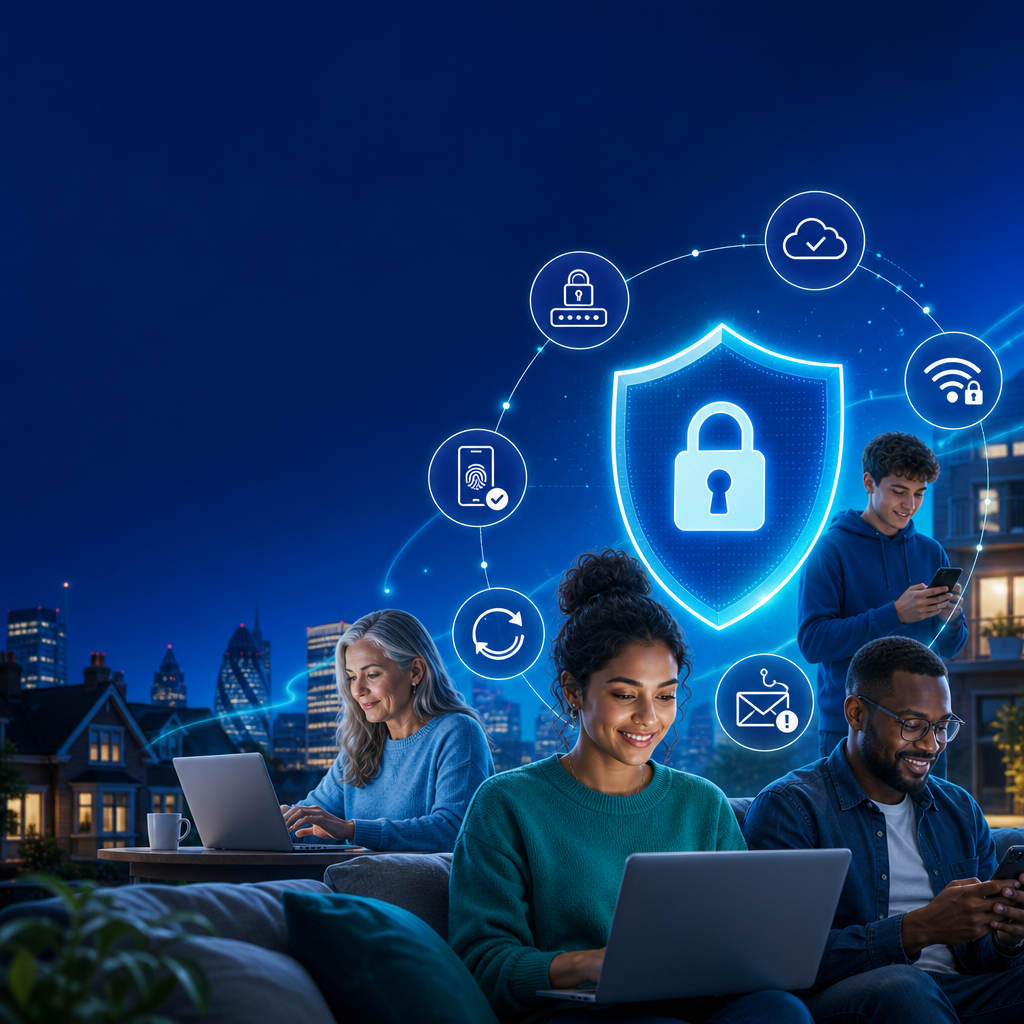
The internet is part of everyday life. We use it for banking, shopping, messaging, working, learning, booking holidays and staying connected with friends and family. But as our digital lives grow, so do the risks. Cyber criminals now use increasingly convincing scams, fake websites, phishing emails, malicious links and stolen personal data to target ordinary people — not just large companies.
The good news is that you do not need to be a technical expert to protect yourself. By using a few modern cyber security techniques, you can dramatically reduce your chances of being hacked, scammed or having your personal information stolen.
At Cyber Heroes, the goal is to make cyber security simple, practical and accessible for everyone. This guide explains the most effective steps you can take today to stay safe online.
1. Use Strong, Unique Passwords for Every Account
Passwords are still one of the most common ways criminals break into accounts. Many people reuse the same password across email, shopping, banking and social media accounts. If one website is breached, criminals may try that same password everywhere else.
What to do instead
Use a different password for every important account. A strong password should be long, difficult to guess and not based on obvious personal details such as your name, birthday, pet’s name or favourite football team.
A good example is a passphrase made from several random words, such as:
River-Window-Coffee-Planet-72
Even better, use a password manager. Password managers create and store strong passwords for you, so you only need to remember one master password.
Quick password safety checklist
- Use a unique password for every account
- Avoid short or obvious passwords
- Do not reuse old passwords
- Use a password manager where possible
- Change passwords immediately if an account is compromised
2. Turn On Multi-Factor Authentication
Multi-factor authentication, often called MFA or 2FA, adds an extra layer of security to your accounts. Instead of logging in with only a password, you also need a second form of verification. This might be a code from an app, a fingerprint, face recognition or a physical security key.
This means that even if a criminal gets your password, they may still be blocked from accessing your account.
Best places to enable MFA first
Start with your most important accounts:
- Email accounts
- Online banking
- Cloud storage
- Social media accounts
- Shopping accounts with saved payment details
- Work or business accounts
For stronger protection, use an authenticator app rather than SMS text messages where possible. Text messages are better than no MFA, but authenticator apps are usually more secure.
3. Learn to Spot Phishing Emails and Scam Messages
Phishing is one of the most common cyber threats affecting the general public. A phishing message tries to trick you into clicking a malicious link, downloading a harmful attachment or giving away sensitive information.
These scams often pretend to come from trusted organisations such as banks, delivery companies, HMRC, streaming services, online shops or even people you know.
Warning signs of phishing
Be cautious if a message:
- Creates urgency, such as “act now” or “your account will be closed”
- Asks for passwords, PINs or banking details
- Contains spelling mistakes or unusual wording
- Uses a strange sender address
- Includes unexpected attachments
- Offers something that seems too good to be true
- Pressures you to click a link immediately
Simple rule to follow
If in doubt, do not click the link. Go directly to the official website by typing the address into your browser or using the company’s official app.
4. Keep Your Devices and Apps Updated
Software updates can feel annoying, but they are one of the easiest ways to stay protected. Updates often fix security weaknesses that criminals are actively trying to exploit.
This applies to:
- Smartphones
- Laptops and desktop computers
- Tablets
- Web browsers
- Apps
- Smart TVs
- Routers
- Smart home devices
Best practice
Turn on automatic updates where available. This helps ensure your devices receive important security fixes without you needing to remember manually.
If a device no longer receives security updates, consider replacing it, especially if you use it for banking, email or storing personal information.
5. Secure Your Home Wi‑Fi Network
Your home Wi‑Fi connects many of your devices to the internet, so it is important to secure it properly. A weak or unprotected Wi‑Fi network can expose your personal activity and devices to unnecessary risk.
How to make your Wi‑Fi safer
- Change the default router password
- Use a strong Wi‑Fi password
- Use WPA2 or WPA3 encryption if available
- Keep your router firmware updated
- Rename your network so it does not reveal your address or router model
- Create a guest network for visitors and smart devices
Your router is often the front door to your digital home. Treat it like any other important security feature.
6. Be Careful on Public Wi‑Fi
Public Wi‑Fi in cafés, hotels, airports and shopping centres can be convenient, but it is not always secure. Criminals may create fake Wi‑Fi networks or intercept information on unsecured networks.
Public Wi‑Fi safety tips
- Avoid online banking on public Wi‑Fi
- Do not enter sensitive information unless necessary
- Use mobile data for important transactions
- Use a reputable VPN if you regularly use public Wi‑Fi
- Check the network name with staff before connecting
- Turn off automatic Wi‑Fi connection on your device
If a public network does not require a password, be extra cautious.
7. Back Up Your Important Data
Backups protect you if your device is lost, stolen, damaged or infected with ransomware. Ransomware is a type of malware that locks your files and demands payment to restore access.
Having a secure backup means you are less likely to lose important documents, photos or work files.
What should you back up?
- Family photos and videos
- Important documents
- Financial records
- Work files
- School or university files
- Business information
The 3-2-1 backup rule
A simple backup strategy is the 3-2-1 rule:
- Keep 3 copies of important data
- Store them on 2 different types of storage
- Keep 1 copy off-site or in the cloud
Cloud backups are convenient, but make sure your cloud account is protected with a strong password and MFA.
8. Review Your Privacy Settings
Many apps and websites collect more information than people realise. Social media platforms, mobile apps and online services may gather data about your location, browsing habits, contacts and personal preferences.
Privacy settings to check
- Who can see your social media posts
- Whether your location is shared
- Which apps can access your camera and microphone
- Which apps can access your contacts
- Whether your profile appears in search engines
- Ad tracking and personalisation settings
Reducing the amount of personal information you share online makes it harder for scammers to target you with personalised attacks.
9. Download Apps and Software Only from Trusted Sources
Malicious apps can steal information, display fake login screens, track activity or install malware. This is especially common when people download apps from unofficial websites or click links in suspicious messages.
Safer download habits
- Use official app stores
- Check app reviews and developer details
- Avoid pirated software
- Be cautious with browser extensions
- Remove apps you no longer use
- Check app permissions before installing
If an app asks for permissions that do not make sense, such as a calculator app requesting access to your contacts or microphone, think twice before installing it.
10. Watch Out for Social Engineering
Social engineering is when criminals manipulate people rather than hacking technology directly. They may pretend to be from your bank, an IT department, a delivery company, a government agency or even a family member in trouble.
Modern scams can happen through:
- Phone calls
- Emails
- Text messages
- Social media
- Fake websites
- Online marketplaces
- Dating apps
How to protect yourself
Pause before taking action. Criminals often rely on panic, urgency or emotion. If someone asks for money, login codes, passwords or personal details, verify the request through a trusted contact method.
For example, if someone claims to be from your bank, hang up and call the number on the back of your bank card.
11. Use Secure Payment Methods Online
Online shopping is usually safe when you use trusted websites and secure payment methods. However, fake shops and marketplace scams are increasingly common.
Online payment safety tips
- Use credit cards or secure payment platforms when possible
- Avoid bank transfers to unknown sellers
- Check website addresses carefully
- Look for reviews from independent sources
- Be suspicious of prices that are far below normal
- Do not save card details on websites you rarely use
A padlock symbol in the browser is useful, but it does not automatically mean a website is trustworthy. It only means the connection is encrypted.
12. Protect Children and Family Members Online
Cyber security is not just an individual responsibility. Families should talk openly about online safety, scams, privacy and appropriate digital behaviour.
Family cyber safety ideas
- Set strong passwords on shared devices
- Use parental controls where appropriate
- Teach children not to share personal details online
- Discuss online scams in simple language
- Encourage children to report suspicious messages
- Keep gaming accounts secure with MFA
- Review privacy settings together
Older relatives may also be targeted by scams, especially through phone calls, emails and text messages. A short conversation can prevent serious financial or emotional harm.
13. Monitor Your Accounts for Suspicious Activity
The sooner you notice suspicious activity, the faster you can respond. Many services now provide alerts for unusual logins, password changes or transactions.
What to monitor
- Bank statements
- Credit card transactions
- Email account login activity
- Social media account activity
- Online shopping orders
- Password breach notifications
If you receive a security alert, do not ignore it. Log in directly through the official website or app and review your account.
14. Know What to Do If You Think You Have Been Hacked
If you suspect an account has been compromised, act quickly but calmly.
Immediate steps
- Change the password for the affected account
- Change passwords for any other accounts using the same password
- Enable MFA if it is not already active
- Log out of all devices if the service allows it
- Check recovery email addresses and phone numbers
- Contact your bank if payment details may be exposed
- Report scams or fraud to the relevant authorities
- Scan your device with reputable security software
If your email account is hacked, treat it as urgent. Email accounts often control password resets for many other services.
15. Build Better Everyday Cyber Habits
Cyber security is not about being perfect. It is about building simple habits that make you harder to target.
Good everyday habits include
- Think before clicking links
- Use strong, unique passwords
- Enable MFA
- Keep devices updated
- Back up important files
- Verify unusual requests
- Limit what you share online
- Use trusted websites and apps
- Review account activity regularly
Small steps make a big difference when they become routine.
Common Cyber Security Myths
“I’m not important enough to be targeted.”
Most cyber attacks are automated. Criminals often target thousands of people at once, looking for anyone who clicks a link, uses a weak password or has an exposed account.
“Antivirus software is all I need.”
Security software helps, but it cannot protect you from every scam, weak password or fake website. Good habits are just as important.
“A padlock means a website is safe.”
A padlock means the connection is encrypted. It does not guarantee the website is legitimate.
“Scam messages are easy to spot.”
Some are, but many modern scams look professional and convincing. Always verify unexpected requests.
Final Thoughts: Cyber Security Is for Everyone
Cyber security may sound technical, but the most effective protections are often simple. Strong passwords, multi-factor authentication, software updates, secure Wi‑Fi, regular backups and careful clicking can protect you from many common online threats.
You do not need to become a cyber expert overnight. Start with one improvement today, then build from there.
For more practical advice and support, visit Cyber Heroes and learn how to stay safer, smarter and more confident online.
FAQ: Modern Cyber Security Techniques
What is the easiest way to improve my online security?
The easiest first step is to enable multi-factor authentication on your email account, banking apps and social media accounts. This adds an extra layer of protection even if your password is stolen.
Are password managers safe?
Reputable password managers are generally much safer than reusing weak passwords. They help create and store strong, unique passwords for every account.
How can I tell if an email is a scam?
Look for urgency, strange sender addresses, unexpected attachments, requests for personal information and links that do not match the official website. If unsure, contact the organisation directly using a trusted method.
Do I need a VPN?
A VPN can help protect your connection on public Wi‑Fi, but it is not a complete security solution. You still need strong passwords, MFA, updates and safe browsing habits.
How often should I update my passwords?
You should change passwords immediately if an account is breached or if you reused the password elsewhere. Using unique passwords with a password manager is more important than changing passwords on a fixed schedule.
What should I do if I clicked a suspicious link?
Close the page, do not enter any information, and scan your device if needed. If you entered login details, change your password immediately and enable MFA. If payment information was involved, contact your bank.
