
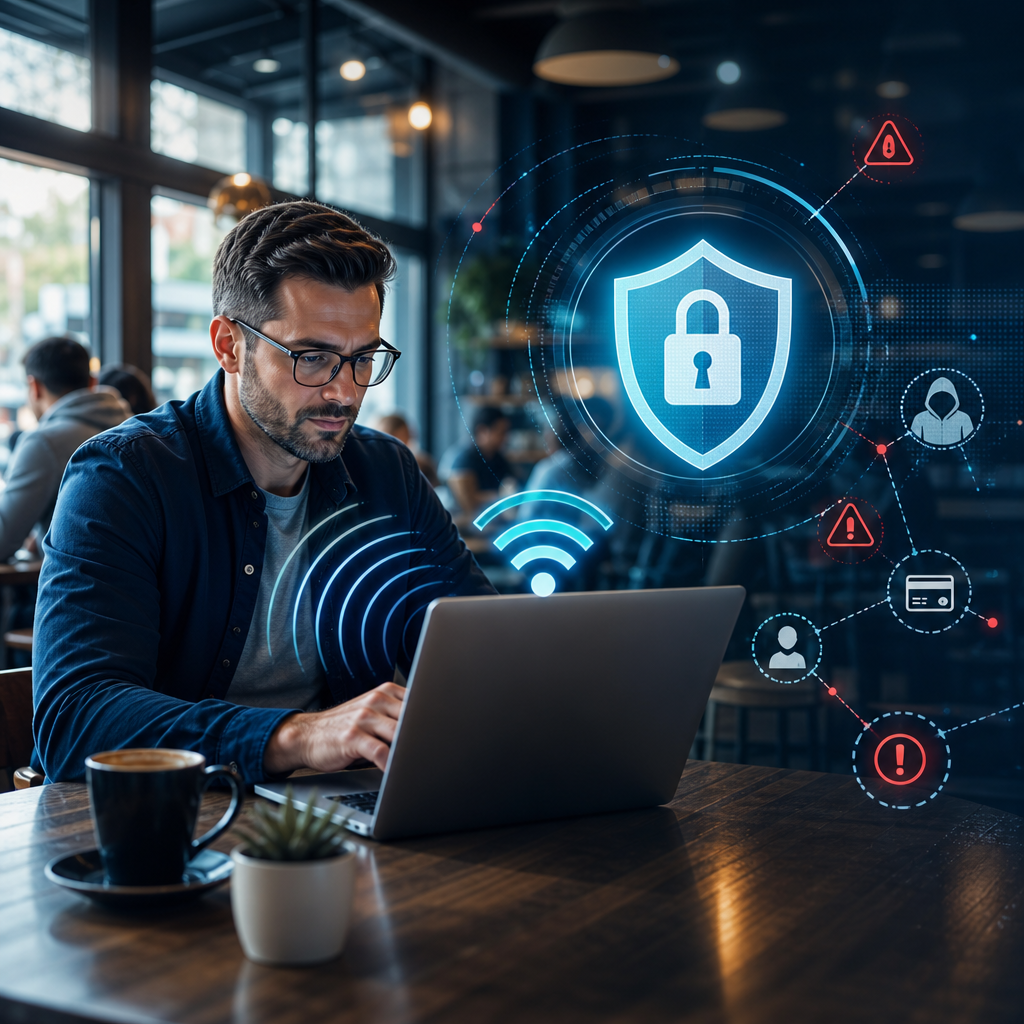
Public Wi‑Fi is convenient. It helps you check messages in a café, work from a hotel lobby, book travel from an airport, or keep children entertained while you are out and about. The problem is that convenience often comes with a trade-off: public networks are rarely as trustworthy as the Wi‑Fi you control at home or in the office.
That does not mean you should panic every time you connect to a hotspot. It does mean you should understand what can go wrong, what attackers are looking for, and which habits make public Wi‑Fi much safer to use.
This guide explains the main risks of public Wi‑Fi in plain English and gives practical steps anyone can follow. If you want broader online safety guidance, visit CyberHeroes or browse the latest cyber safety articles on the CyberHeroes news page.
What Is Public Wi‑Fi?
Public Wi‑Fi is any wireless network offered in a shared location where many people can connect. You might find it in coffee shops, libraries, schools, hotels, trains, airports, shops, coworking spaces, restaurants, hospitals, and public buildings.
Some public networks are run professionally and have reasonable safeguards. Others are basic, poorly configured, or even fake. As a user, you often cannot see how the network has been set up, who else is connected, whether traffic is being monitored, or whether the hotspot name is genuine.
That lack of visibility is why public Wi‑Fi deserves extra caution.
Why Public Wi‑Fi Can Be Risky
When you use a private network at home, you normally know who set it up, who has the password, and which devices are likely to be connected. On public Wi‑Fi, you are sharing a digital space with strangers. Some may be ordinary customers. Others may be actively looking for weak devices, exposed data, or easy opportunities.
The biggest danger is not always the Wi‑Fi itself. It is the combination of an unknown network, relaxed behaviour, automatic device settings, and sensitive tasks such as banking, email, work logins, and shopping.
Public Wi‑Fi becomes much safer when you treat it as untrusted by default.
Common Public Wi‑Fi Threats
Fake Hotspots
A fake hotspot is a Wi‑Fi network created to look legitimate. For example, an attacker may create a network name that looks similar to a café, hotel, or airport network. People connect because the name seems familiar, and the attacker can then attempt to observe traffic, redirect users, or push them towards fake login pages.
This is sometimes called an “evil twin” attack. The network may even provide real internet access, which makes it feel normal while the attacker sits between you and the websites or services you are using.
Man-in-the-Middle Attacks
A man-in-the-middle attack happens when an attacker positions themselves between your device and the service you are trying to reach. Instead of your data travelling directly and privately, it may be intercepted, altered, or redirected.
Modern encrypted websites make this much harder, but it is still a risk if you visit insecure websites, ignore browser warnings, install unknown certificates, or use apps that do not protect data properly.
Snooping on Unencrypted Traffic
If a website or app sends information without encryption, someone on the same network may be able to read it. This could include pages visited, form entries, search terms, messages, or login details if a service is badly designed.
A secure site should use HTTPS, and your browser should show a lock or similar security indicator. However, the lock is not a guarantee that a website is trustworthy. It only means the connection to that site is encrypted.
Session Hijacking
Some online services keep you logged in using a session token. If that token is exposed, an attacker may try to use it to access your account without needing your password. This is why it is risky to stay logged in to important services on unknown networks, especially if the service does not handle sessions securely.
Malicious Login Pages
Many public networks use a captive portal: a page that appears when you first connect and asks you to accept terms, enter a room number, provide an email address, or sign in. Captive portals are common, but fake versions can be used to steal credentials.
Be cautious if a Wi‑Fi login page asks for your email password, social media password, payment card details, or anything unrelated to basic network access.
Device Exposure and File Sharing
Your device may have settings designed for trusted networks, such as file sharing, printer sharing, device discovery, or automatic connections. On public Wi‑Fi, these features can reveal your device to others or increase the chance of unwanted access.
This matters for laptops, tablets, phones, and work devices. A device configured for a home or office environment should not behave the same way on a public network.
Malware Delivery
Attackers may use public networks to push fake updates, malicious downloads, or cloned websites. If you see a sudden pop-up telling you to install a browser update, security patch, media player, or certificate before using Wi‑Fi, stop and think. Genuine updates should come from your device’s official update settings or the trusted app store.
Is Public Wi‑Fi Ever Safe?
Public Wi‑Fi can be safe enough for low-risk tasks if you use it carefully. Reading public news pages, checking maps, browsing general information, or sending non-sensitive messages is usually lower risk than logging in to bank accounts, handling work files, accessing medical portals, or making purchases.
The safer approach is to match the network to the task. If the task is sensitive, use mobile data, a trusted hotspot, or wait until you are on a network you control.
How to Stay Safe on Public Wi‑Fi
Confirm the Network Name Before Connecting
Before you connect, ask staff for the correct network name. Do not rely only on what appears at the top of your Wi‑Fi list. Attackers often use names that look convincing.
If there are several similar names, choose the one confirmed by the venue. If staff are unsure or the network seems suspicious, avoid using it for anything important.
Avoid Sensitive Logins Where Possible
Try not to use public Wi‑Fi for banking, payroll, tax accounts, business admin, healthcare portals, password manager changes, or important email access. If you must log in, make sure the website is genuine, the connection is encrypted, and your account uses multi-factor authentication.
If something can wait, let it wait.
Use Mobile Data for High-Risk Tasks
Mobile data is often a better option for sensitive activity when you are away from home. Your phone’s personal hotspot can also be safer than an unknown public network, provided it uses a strong password and is switched off when not needed.
This is especially useful for remote workers, business owners, parents managing family accounts, and anyone handling confidential information.
Use a Reputable VPN
A virtual private network can encrypt traffic between your device and the VPN provider, making it harder for others on the same Wi‑Fi network to inspect your activity. A VPN is not a magic shield, and it does not make unsafe websites safe, but it can reduce several public Wi‑Fi risks.
Choose a reputable provider, keep the VPN app updated, and avoid free services that do not clearly explain how they make money or handle data.
Check for HTTPS and Browser Warnings
Look for HTTPS on websites where you enter information. If your browser warns you that a connection is not private, do not ignore it. Do not click through certificate warnings just to get online faster.
A warning may mean the site is misconfigured, but on public Wi‑Fi it can also be a sign that someone is trying to interfere with your connection.
Keep Your Device Updated
Updates fix security weaknesses in your operating system, browser, and apps. Public networks are less forgiving of outdated software because attackers may be scanning for known vulnerabilities.
Before travelling or working away from home, update your phone, laptop, browser, and important apps on a trusted network.
Turn Off Auto-Connect
Many devices automatically reconnect to networks they have used before. That is convenient, but it can be risky if your device connects to a network without you noticing.
Turn off auto-connect for public networks after you use them. You can also tell your device to forget a network so it does not reconnect in the future.
Disable Sharing on Public Networks
When your laptop asks whether a network is public or private, choose the public option for cafés, hotels, stations, airports, and other shared spaces. This helps reduce discovery and sharing features.
Check settings for file sharing, printer sharing, AirDrop visibility, nearby sharing, and network discovery. Use the most restrictive setting when you are in public.
Use Multi-Factor Authentication
Multi-factor authentication adds an extra step when logging in, such as an authenticator app prompt, security key, or code. If your password is stolen, the attacker still has another barrier to overcome.
Use multi-factor authentication on email, banking, cloud storage, social media, work systems, and any account that could cause serious harm if compromised.
Use a Password Manager
A password manager helps you use strong, unique passwords for each account. It also makes phishing easier to spot because it will not usually autofill credentials on a fake website with the wrong address.
If you are still reusing passwords, public Wi‑Fi increases the risk. One stolen password can become a key to many accounts.
Log Out When Finished
When using important websites on a public network, log out when you are done rather than simply closing the tab. This helps reduce the risk from exposed sessions, shared devices, or unattended screens.
For shared or borrowed devices, avoid logging in to personal accounts at all.
Be Careful With Captive Portals
Captive portals should only ask for basic access steps, such as accepting terms or entering a venue-provided code. Be suspicious if a portal asks for your personal email password, social media login, payment details, or permission to install software.
If you are unsure, disconnect and use mobile data instead.
Avoid Installing Certificates or “Wi‑Fi Helper” Apps
Some networks may ask you to install a certificate, profile, or helper app. Unless this is a managed work or education network that you trust and understand, avoid it. Installing certificates can give a network operator more power to inspect encrypted traffic.
For ordinary public browsing, this should not be necessary.
Keep Bluetooth and Sharing Features Under Control
Public Wi‑Fi is not the only wireless risk. Bluetooth, nearby sharing, and open device discovery can also expose you in busy places. Turn off features you are not using, especially while travelling.
Watch for Shoulder Surfing
Cybersecurity is not only technical. In a public place, someone may simply look over your shoulder as you type a password, unlock your phone, or view sensitive information. Use privacy screens where appropriate, sit with your screen out of view, and avoid discussing confidential matters in crowded spaces.
Public Wi‑Fi Safety for Remote Workers
Remote workers should be especially careful because a single compromised device can affect an employer, client, or customer. If you work in cafés, hotels, coworking spaces, or public transport, follow your organisation’s security policy and use approved tools.
Key habits include using a work-approved VPN, locking your screen when away from the device, keeping confidential files out of public view, avoiding personal USB devices, and reporting suspicious pop-ups or login prompts quickly.
Businesses that need help strengthening remote working security can explore CyberHeroes services.
Public Wi‑Fi Safety for Parents and Families
Children and teenagers may connect to public Wi‑Fi without thinking about security. They may also accept pop-ups, join unknown networks, or enter account details into fake pages.
Parents can help by setting clear rules: ask before joining unknown networks, avoid entering passwords on public Wi‑Fi, do not install apps or certificates from pop-ups, and tell an adult if a device behaves strangely. Family conversations work best when they are practical rather than frightening.
For more family-friendly cyber safety guidance, browse CyberHeroes articles.
What to Do If You Think Public Wi‑Fi Put You at Risk
If you connected to a suspicious network or entered details on a page you no longer trust, act quickly and calmly.
First, disconnect from the Wi‑Fi network. Then change the password for any account you may have exposed, using a trusted network or mobile data. If the same password was used elsewhere, change it there too. Check account activity, sign out of other sessions where the service allows it, and enable multi-factor authentication.
If payment details were involved, contact your bank or card provider. If a work account was involved, report it to your employer or IT support team as soon as possible. If you installed a profile, certificate, or unknown app, remove it and consider getting the device checked.
If you need professional advice, contact CyberHeroes.
Public Wi‑Fi Safety Checklist
Use this quick checklist before connecting:
- Confirm the network name with the venue.
- Avoid sensitive logins when possible.
- Use mobile data for banking, work admin, and confidential tasks.
- Use a reputable VPN when using unknown networks.
- Check for HTTPS and never ignore browser security warnings.
- Keep your device, browser, and apps updated.
- Turn off auto-connect for public networks.
- Disable sharing and discovery features.
- Use strong unique passwords and multi-factor authentication.
- Forget the network when you are finished.
Frequently Asked Questions
Is public Wi‑Fi safe to use?
Public Wi‑Fi can be safe enough for low-risk browsing if you use it carefully, but it should be treated as untrusted. Avoid sensitive logins, confirm the network name, and use mobile data or a reputable VPN for higher-risk tasks.
What is the biggest risk of using public Wi‑Fi?
Common risks include fake hotspots, man-in-the-middle attacks, malicious login pages, exposed device sharing settings, and snooping on unencrypted traffic.
Should I use a VPN on public Wi‑Fi?
A reputable VPN can reduce some public Wi‑Fi risks by encrypting traffic between your device and the VPN provider. It does not make unsafe websites safe, but it is a useful additional protection.
Is mobile data safer than public Wi‑Fi?
For sensitive tasks, mobile data is usually a better choice than an unknown public hotspot. It reduces your exposure to other users on a shared local network.
What should I do after using public Wi‑Fi?
Disconnect when finished, tell your device to forget the network if you do not need it again, and check that auto-connect is disabled for that hotspot.
Final Thoughts
Public Wi‑Fi is useful, but it should never be treated as fully trusted. The safest mindset is simple: assume other people may be on the same network, assume the network name could be misleading, and avoid doing anything sensitive unless you have extra protection in place.
Small habits make a big difference. Confirm the network, use mobile data for important tasks, keep devices updated, turn off sharing, and protect your accounts with strong passwords and multi-factor authentication.
Cybersecurity does not have to be complicated. With the right precautions, you can enjoy the convenience of public Wi‑Fi while keeping your personal, family, and business data much safer.
For more practical cyber safety guidance, visit CyberHeroes, read the latest articles on the CyberHeroes news page, or get support through the CyberHeroes contact page
